
Introduction
If your Wi-Fi feels slow or unreliable, you’re not alone. Home networking is simply the way your devices connect to the internet and to each other. This guide walks you through a practical home network setup that works in real homes, without technical jargon or unnecessary complexity.
In simple terms, home networking connects your computers, phones, smart TVs, and smart home devices through a router so they can share a single internet connection. When everything is set up correctly, the experience feels seamless. When it isn’t, the result is buffering videos, dropped calls, and constant frustration.
A well-planned home network setup plays a critical role in modern life — whether you’re working remotely, streaming content, gaming, or managing smart home devices. Each part of your network, from the router to device placement, affects how reliably everything communicates.
I’ve spent years adjusting my own home network — moving routers, switching cables, and tightening security settings — and I’ve learned that small, practical changes often make the biggest difference. This guide explains home networking in plain English, based on real-world experience, so you can understand what’s happening in your home and troubleshoot problems with confidence.
Key Takeaways
Investing in a quality router can greatly enhance your home network setup. A well-placed router in your home network setup can help avoid dead zones and ensure consistent internet coverage.
What is home networking?
Home networking is how your devices connect to each other and the internet using a router, Wi-Fi, and sometimes Ethernet cables as part of a reliable home network setup. It allows multiple devices to share one internet connection.
Do I need a modem and a router?
Most homes need both a modem and a router. The modem connects to your internet provider, while the router shares that connection with your devices.
Why is my Wi-Fi slow in some rooms?
Raising the router higher often improves coverage without new equipment.
Do Wi-Fi 6 and Wi-Fi 7 make a difference at home?
Yes. Wi-Fi 6 improves performance in homes with many connected devices, while Wi-Fi 7 builds on this for future-heavy usage.
Is a wired Ethernet connection still worth it?
Wired Ethernet is faster and more reliable than Wi-Fi. I use Ethernet for our desktop PCs to avoid dropouts during large downloads and backups.
How can I secure my home network?
Start by changing the router’s default password, using WPA3 or WPA2 encryption, disabling WPS, and keeping the router firmware up to date.
Understanding Your Home Router (And Why It Matters More Than You Think)
Your router is the heart of your home network. Every device in your home — phones, laptops, smart TVs, streaming sticks, and smart home gear — relies on it to send and receive data. When your network feels slow or unreliable, the router is usually the first place to look.
In simple terms, a router takes the internet connection coming into your home and safely shares it with all your devices, either over Wi-Fi or Ethernet cables.
Remember that your home network setup should be flexible. As new devices are added, your home network setup must adapt to ensure all devices perform optimally.
What Does a Home Router Actually Do?
A modern home router handles several important jobs at once:
- Distributes internet access to multiple devices
- Assigns local IP addresses so devices can find each other
- Manages Wi-Fi signals throughout your home
- Acts as a basic firewall to block unwanted traffic
Many people rarely change their router settings. This can lead to recurring issues.
Router placement is a key aspect of an effective home network setup. Good positioning can dramatically improve your home network setup’s efficiency.
Router Placement Can Make or Break Your Wi-Fi
Does router placement affect Wi-Fi speed?
Yes. Placement impacts coverage and signal strength more than most people expect.
A common mistake—one I have made myself—is placing the router poorly.
I originally placed the router near the cable entry point, low to the floor, and tucked beside furniture. Wi-Fi was weak in several rooms. Simply moving the router higher and closer to the center of the house noticeably improved coverage, without buying any new hardware, so consider these points.
For best results, place your router near the center of your home so signals reach all rooms evenly.
- Keep it elevated (on a shelf is better than the floor)
- Position the router away from thick walls, metal objects, and large appliances, as these can block or weaken signals.
- Restart your router now and then. A simple reboot can fix issues by clearing the router’s memory.
These small changes often solve Wi-Fi complaints faster than upgrading equipment.
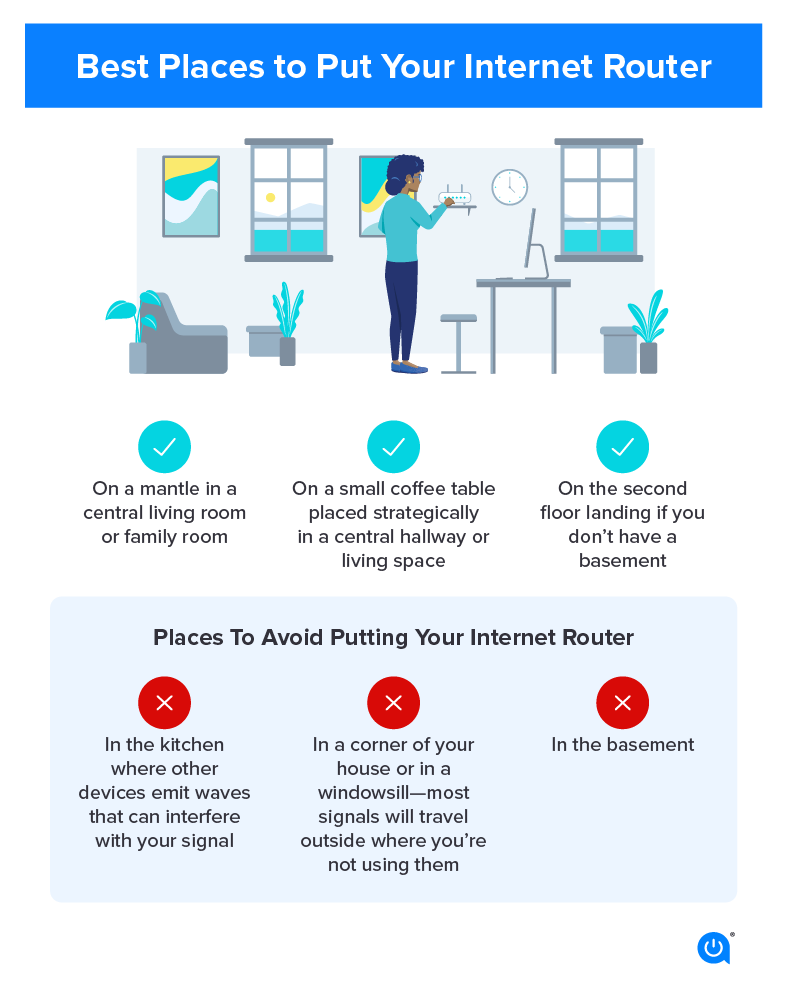
For a successful home network setup, make sure to keep your firmware up to date. This ensures your home network setup benefits from the latest features and security improvements.
Do You Need an Expensive Router?
You don’t need an expensive router. For most homes, a mid-range model is enough for browsing, streaming, and video calls. Most problems come from outdated equipment or bad placement—not price.
However, consider upgrading if your router is more than 5–6 years old, consistently struggles with performance across all rooms, frequently drops connections, or fails to support the number of devices you need without slowdowns.
- You have lots of smart devices competing for bandwidth.
- Your home has more than one floor or thick walls.
In these situations, upgrading to a newer router or mesh Wi-Fi system can help provide faster, more consistent coverage throughout your home. One advantage of mesh Wi-Fi systems is the ability to add additional Wi-Fi units to your existing network to improve coverage in specific areas or on multiple floors.
Wi-Fi 6 and Wi-Fi 7: Do They Actually Matter at Home?
Wi-Fi standards like Wi-Fi 6 and Wi-Fi 7 often sound like marketing upgrades, but they were created to solve real problems in modern homes — especially as the number of connected devices quietly exploded. These standards are defined by the Wi-Fi Alliance to improve efficiency and reliability in modern homes.
In simple terms, newer Wi-Fi standards are designed to handle many devices simultaneously more efficiently, not just deliver higher top speeds. I always recommend the use of speed test websites such as Ookla to check the speed of your connection. Do this test from a wired and Wi-Fi device, it can prove useful as a indication of your network and internet connection.
As smart speakers, smart TVs, security cameras, and home automation devices became common in everyday homes, older Wi-Fi standards struggled to keep up. Wi-Fi 6 — and later Wi-Fi 7 — were designed specifically to manage this shift toward always-connected households.
What This Means in Real Life
Most home Wi-Fi problems aren’t caused by slow internet plans. They happen when:
- Multiple people stream video at once, or play video game consoles.
- Smart devices stay connected 24/7, including doorbell and exterior cameras.
- Video calls, downloads, and updates overlap.
Older Wi-Fi standards weren’t built for this level of congestion. Wi-Fi 6 improves how your router shares airtime between devices, while Wi-Fi 7 takes that efficiency even further for heavy, future-oriented use.
The result isn’t always a faster speed test — it’s a smoother, more reliable network.
What is Wi-Fi 6 (802.11ax) ?
- Designed for homes with many connected devices
- Improves efficiency, stability, and battery life for devices
- The best upgrade choice for most homes today
What is Wi-Fi 7 (802.11be) ?
- Builds on Wi-Fi 6 with even lower latency and higher capacity
- Designed for future devices and demanding applications
- Often unnecessary unless you upgrade infrequently, run cutting-edge hardware, or prefer to safeguard for the future.
- As the price of Wi-Fi 7 routers is becoming more affordable, they are becoming a more affordable, future-proof investment.
Practical Tips You Can Use Today
- Choose Wi-Fi 6 if your router is several years old.
- Don’t upgrade solely for headline speeds—focus on reliability.
- Wi-Fi 7 makes sense if you want long-term future-proofing.
- Always check that your devices support newer Wi-Fi standards.
Wifi 6 or WIFI 7, which is best?
Wi-Fi 6 is the current sweet spot for most homes, offering smoother performance and better handling of smart devices. Wi-Fi 7 is promising, but only worth considering if you’re planning far ahead or running very demanding setups.
Wired vs Wireless: When Ethernet Still Wins
While Wi-Fi is convenient, wired Ethernet connections are still the most stable option. I personally keep our desktop PCs connected via Ethernet because it eliminates dropouts during large downloads and backups.
Use Ethernet when you need:
- Maximum stability
- Consistent speeds
- Minimal interference
Wi-Fi is best for mobility, but Ethernet is most reliable.
My Real-World Experience
I still use Ethernet for our main desktop PC. Wi-Fi works fine for browsing, but wired connections eliminate dropouts during large downloads and backups.
Practical Tips You Can Use Today
- Use Ethernet for stationary devices.
- Use Wi-Fi for phones, tablets, and laptops, and smart home devices.
- Combine both for the best overall experience.
Is it better to use Ethernet or WiFi?
Wi-Fi is convenient, but Ethernet is more reliable for stability. Use Ethernet where possible for computers, wifi is better suited for IOT devices.
In conclusion, a proper home network setup is vital in today’s digital age. By following these guidelines, you can enjoy a smooth and efficient home network setup.
Why Wi-Fi Slows Down (And How to Fix It)
Slow Wi-Fi isn’t usually caused by your internet plan itself. Instead, common culprits include interference from other wireless networks, physical distance from the router, thick walls, or electronic devices that disrupt the signal. When too many devices are connected at once or when your router is placed in a less-than-ideal spot, Wi-Fi performance can suffer. Understanding these factors can help you pinpoint the cause of slowdowns and take effective steps to restore fast, stable wireless connections throughout your home.
My Real-World Experience
Wi-Fi speeds dropped in the evening. It wasn’t my provider; it was interference from nearby networks. Changing the Wi-Fi channel fixed it. Most people leave these as default, and the airwaves become congested. Older routers struggle to switch to better channels on their own.
Practical Tips You Can Use Today
- Restart your router
- Move closer to the router.
- Change Wi-Fi channels in router settings.
- Reduce interference from other electronics.
<images>
Key Takeaway – Why is my WIFI Slow
Wi-Fi issues are usually environmental, not service-related.
Securing Your Home Network Setup Without Overcomplicating It
Securing your home network isn’t hard; most improvements take minutes.
Your router is a basic firewall. If configured badly, your whole network is exposed.
My Real-World Experience
After disabling WPS and changing default passwords, I saw fewer unknown devices attempting to connect. Many people do not check these settings.
Key Takeaway
Taking a few basic steps can boost your security without adding complexity.
Final Thoughts
Home networking doesn’t need to be overwhelming. Once you understand how the pieces fit together, small changes can dramatically improve reliability and performance.
This guide is based on real-world experience, not theory. If you’re willing to experiment just a little, your home network can feel faster, more stable, and far less frustrating.
About The Author
Written by Shaun Harding, a lifelong techie with over 30 years of real-world experience building, securing, and troubleshooting home networks. Through The Tech Hamster, he shares practical, jargon-free guidance based on what actually works.